How to add subtitles to a video on iPhone
Written by the maker of Captions Cut, which is one of the tools compared. Facts checked on from the pages listed under Sources.
The short answer
The iPhone has no built-in way to put subtitles on a video: iMovie has no automatic captions, and Apple stopped offering Clips, whose Live Titles did it, in October 2025. So there are four ways: an app that transcribes the speech for you (a captions app such as Captions Cut, or an editor such as CapCut or Instagram’s Edits), the captions TikTok, Instagram or YouTube add when you post, or typing the words yourself as titles in iMovie.
With a captions app: the fastest way
A captions app writes the subtitles from the speech, times every word and burns them into the video, so they show wherever the video is posted. In Captions Cut:
- Install Captions Cut from the App Store and sign in with Apple or Google.
- Import the clip from Photos.
- Leave Create captions on, choose the spoken language or leave it on Auto detect, pick a caption style and tap Create project.
- Read the transcript and fix any word by tapping it.
- Tap Export and save the video to Photos in 1080p or 4K, then post.
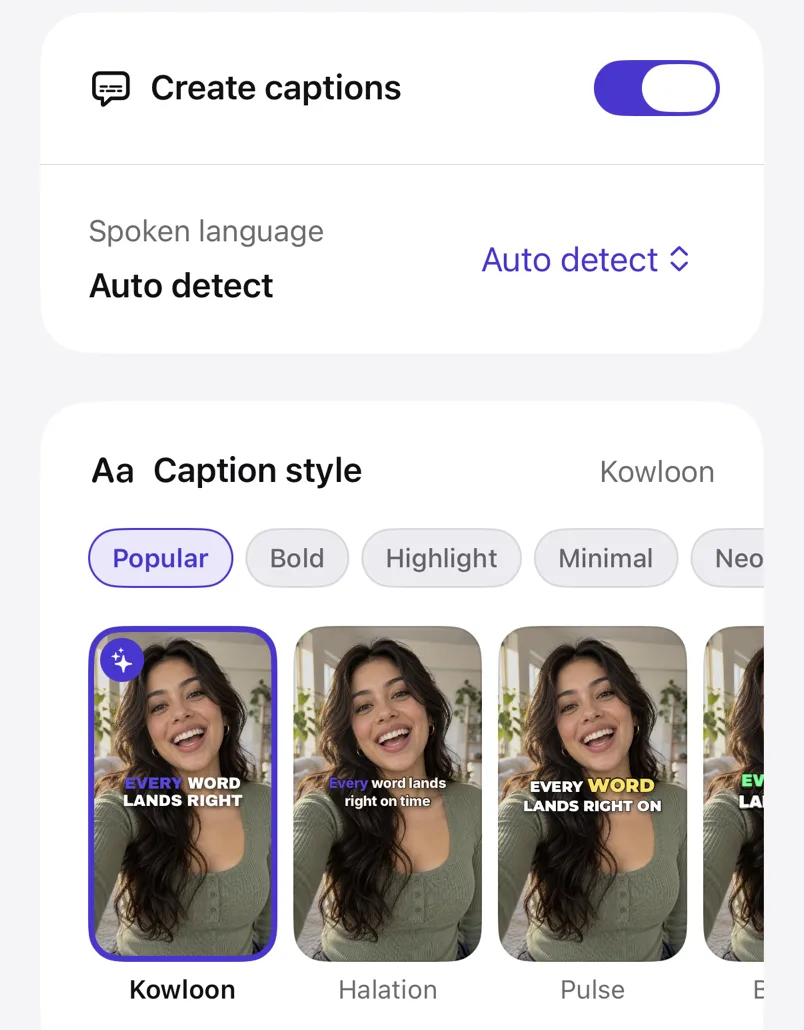
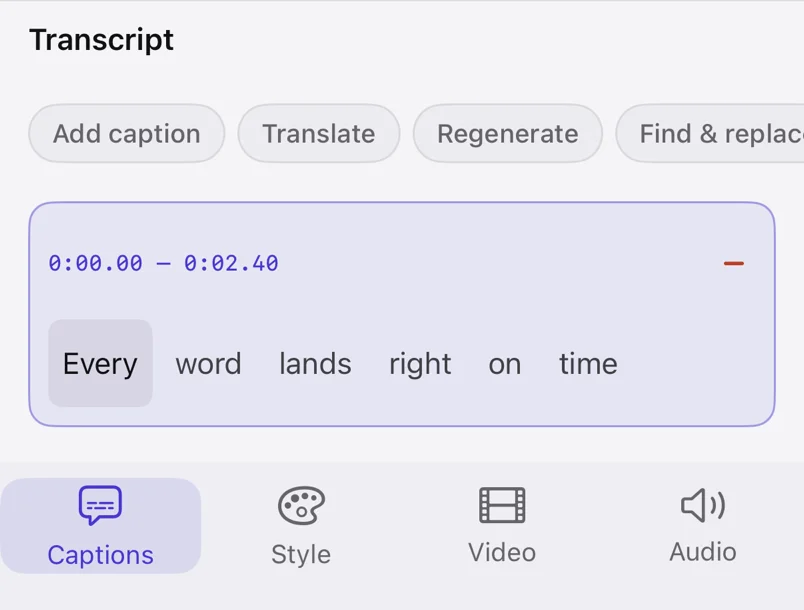
The first 2 minutes are free; after that you pay per second of audio. The same works in the browser at captionscut.com/edit.
With CapCut or Edits
If you already edit in a video editor, use its captions. In CapCut, Captions › Auto Captions transcribes the clip into lines you can edit and style; the speech is recognised on CapCut’s servers. Instagram’s Edits app adds automatic captions too, and since July 2026 it can add a translated second line. Both are free to start. How CapCut’s auto captions work.
With the platform’s own captions
TikTok, Instagram and YouTube can caption a video when you post it. Nothing is added to the video itself: viewers who have captions on see them, in the platform’s style, and you fix mistakes after posting. See TikTok, Instagram and YouTube, and burned-in or platform captions.
By hand in iMovie
iMovie, Apple’s free editor, has no speech recognition, so every subtitle is typed as a title:
- Split the clip where each line of speech starts.
- Select a piece, tap T (Titles) and pick a plain lower-third title.
- Type what is said in that piece, then repeat for the next.
It works for a few lines, but a 30-second clip can take longer than filming it, and iMovie cannot import an SRT file made somewhere else.
Which to pick
- Captions on every repost and download, styled your way: a captions app, or CapCut or Edits.
- You already edit in CapCut or Edits: their captions are enough.
- Accessibility on one platform only: the platform’s own captions, plus a caption file where it takes one.
- Two or three words on screen: iMovie titles.
Questions
Can the iPhone add subtitles to a video automatically?
Not on its own. iMovie has no automatic captions, and Clips, which had them, is no longer offered to new users. Use a captions app or an editor with auto captions, or the captions the platform adds when you post.
Does iMovie have auto captions?
No. In iMovie each subtitle is a title you type and place yourself, and it cannot import SRT files.
Do subtitles stay on the video when I share it?
Burned-in subtitles, from a captions app, CapCut or Edits, are part of the picture and stay on every repost and download. The platforms’ own captions stay on that platform.
Sources
- AppleInsider: Apple Clips discontinued
- CapCut help: auto captions
- Social Media Today: Edits adds bilingual captions
Each page read on .